Web Services and QTP – Part 2: Web Service Testing Wizard
In
the earlier part of WebServices
testing with QTP, we have gone through the basic concept required
for web service testing. In this part we will use those concepts to test the
web service using QTP.
When you are about to test a web service, make
sure you have enabled Web Service Add-in for QTP. Once you have the add-in
properly loaded you will see web service pane at Test Settings and Options. Web
services toolkit option enables you to select a toolkit you want QTP to use for
web service operations. For new tests and components, the default toolkit is
the same as the toolkit set in the Web Services pane of the Options dialog box
for learning Web Service objects.
QTP
performs validation using the WS-I validation tool. The
Web Services Interoperability Organization (WS-I) is an open industry
organization chartered to establish Best Practices for Web services
interoperability, for selected groups of Web services standards, across
platforms, operating systems and programming languages.You will
need to specify the path of validation tool in web services pane at option, and
then you can access the tool by selecting Tools > validate WSDL.
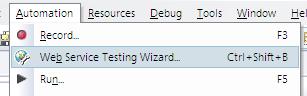
Let us now see Web Service Testing Wizard in QTP. To open the wizard click the web services wizard in toolbar or select Automation > Web Service Testing Wizard.
Let us now see Web Service Testing Wizard in QTP. To open the wizard click the web services wizard in toolbar or select Automation > Web Service Testing Wizard.
You will see a Welcome screen which provides you
the overview of wizard. You can choose whether you want the welcome screen when
running the wizard or not.
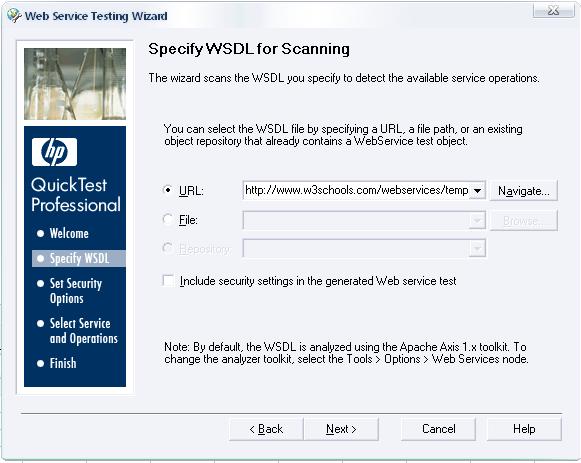
Clicking
on Next button you will get the screen for WSDL Scanning. Here you will need to
specify the WSDL, which can be a URL, a WSDL file or it could be in your
repository which has added earlier. Select the Include
security settings in the generated Web service testcheck
box if you want to specify the security tokens that are required for
communication with the Web service you want to test.
Click
Next, the next screen that pops up is depending on your selection in the last
screen. If you have specified a secure WSDL, the Network Credentials dialog box
opens. Enter the login details required to access the WSDL and click OK.
The Web Service Testing Wizard – Set Security Options Screen opens. If you
selected the Include security settings in
the generated Web service test check box, the Web Service Testing
Wizard – Set Security Options Screen opens. If you do not need to specify
security settings, the Web Service Testing Wizard – Select Service and
Operations Screen opens.
Specify
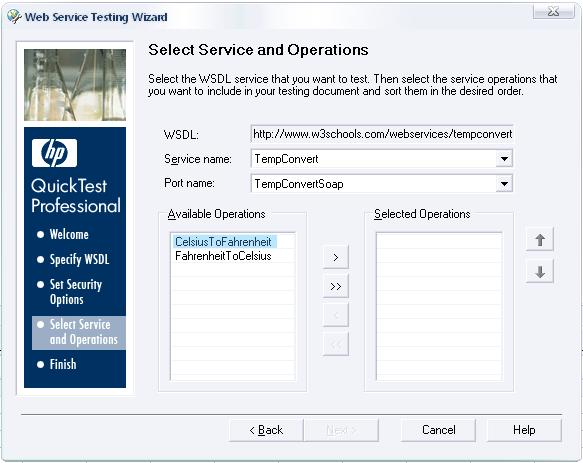
the WSDL from W3Cschools.com which I have mentioned in the last parthttp://www.w3schools.com/webservices/tempconvert.asmx?wsdl . Clicking on Next, Select Service and
Operations Screen opens.
You
will see the two operations here select one of the operations and move it to
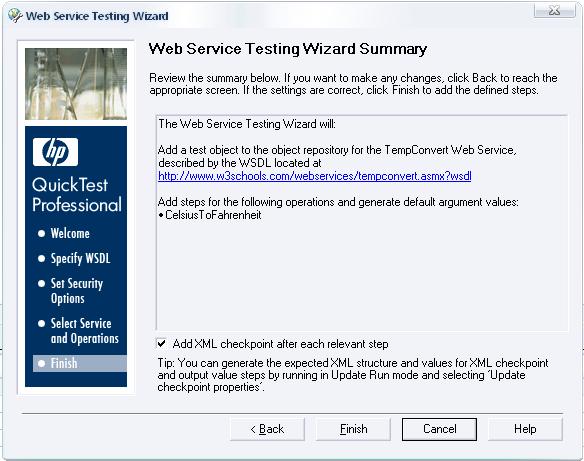
selected Operations list. And click next. The next screen comes is the Summary
screen. You can automatically insert XML checkpoints by selecting Add
XML checkpoint after each relevant step (selected by default).
Selecting this check box adds an XML checkpoint for each step in the test that
has a return value or an output argument.
Click Finish and The WebService test object is
stored in the local object repository, and the defined steps are converted to
the proper syntax and inserted into your test.
Go to your Object repository. You will see your
web services test object and the xml checkpoint added. Selecting the test
object, you can see the details of this object like wsdl, port, and service.
You can see the following script generated in your test.
CelsiusToFahrenheit= WebService("TempConvertService").CelsiusToFahrenheit("string
  (Autogenerated)")
WebService("TempConvertService").Check
CheckPoint("CelsiusToFahrenheit") |
You can see that the parameters are not yet
passed, it is auto generated by the wizard (“string (Autogenerated)”), and you
will need to specify this parameter before executing this. Something like below
and execute.
CelsiusToFahrenheit =
  WebService("TempConvertService").CelsiusToFahrenheit("25")
WebService("TempConvertService").Check
CheckPoint("CelsiusToFahrenheit") |
In the Test Result you will find that your test
failed. Click on Web Service object you can see the SOAP request and response
there as described in the last part.
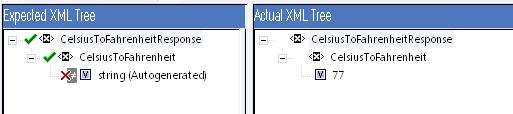
The web service has actually output the result in
the response i.e. 77; actually it has failed at check point.
This is because we have not configured the xml
checkpoint for the expected result. So if you have selected to add xml
checkpoint at wizard then make sure you have configured it.
Note:-
- Make sure you run Web service tests using the same toolkit with which the test was created.
- QTP includes Maintenance Run Mode, which is not supported for applications such as Web services, which do not have a user interface.
- WSDL Validation tool is a third-party application that is not provided with QuickTest. You can download Interoperability Testing Tools 1.1 from the Web Services Interoperability Organization Web site at http://www.ws-i.org and it must be installed locally.


No comments:
Post a Comment