How to send a
SOAP XML message using the SendRequest method
The user wants to write a test that sends a SOAP XML message to his Web Services gateway.
Example:
Set ssr0XML = XMLUtil.CreateXMLFromFile("D:\temp\XML\ServiceStatus\SSR0.xml")
WebService("XOAService_2").SendRequest("ServiceStatus", "ssr0XML")
The first line of the script reads the contents of a valid XML file into a variable named ssr0XML. The second line attempts to send this message to the Web Services application server.
During replay, the user verifies that QuickTest Professional sends the message. However, the content of the message is the string ssr0XML, not the expected XML file. This causes the Web Services server to generate an error. How should a message be sent?
Solution: Using the SendRequest Web Services method
The SendRequest method sends the message specified in the SOAPMessage argument with no modifications and no additional items are appended to the message. Specifically, the message is not affected by previous AddAttachment, AddHeader, AddMessageProtection, AddSecurityToken statements.
object.SendRequest OperationName, SOAPMessage
object The WebService test object.
OperationName The Web service operation to be performed by the request.
SOAPMessage The SOAP request in the form of an XML string. The value should be a valid SOAP envelope, according to the SOAP specifications.
You can retrieve the response to the message sent with this method by inserting a LastResponse statement after it.
Note:
The SendRequest method expects a XML string, not an XML object. So if you are using the XMLUtil object to create an XML object, you will need to use the ToString method to convert the XML object to an XML string. Then you can use it with the SendRequest method.
Example:
Set ssr0XML = XMLUtil.CreateXMLFromFile("D:\temp\XML\ServiceStatus\SSR0.xml")
XMLstr = ssr0XML.ToString
WebService("XOAService_2").SendRequest("ServiceStatus", XMLstr)
Read this series to understand the basics of WebServices with QTP.
The user wants to write a test that sends a SOAP XML message to his Web Services gateway.
Example:
Set ssr0XML = XMLUtil.CreateXMLFromFile("D:\temp\XML\ServiceStatus\SSR0.xml")
WebService("XOAService_2").SendRequest("ServiceStatus", "ssr0XML")
The first line of the script reads the contents of a valid XML file into a variable named ssr0XML. The second line attempts to send this message to the Web Services application server.
During replay, the user verifies that QuickTest Professional sends the message. However, the content of the message is the string ssr0XML, not the expected XML file. This causes the Web Services server to generate an error. How should a message be sent?
Solution: Using the SendRequest Web Services method
The SendRequest method sends the message specified in the SOAPMessage argument with no modifications and no additional items are appended to the message. Specifically, the message is not affected by previous AddAttachment, AddHeader, AddMessageProtection, AddSecurityToken statements.
object.SendRequest OperationName, SOAPMessage
object The WebService test object.
OperationName The Web service operation to be performed by the request.
SOAPMessage The SOAP request in the form of an XML string. The value should be a valid SOAP envelope, according to the SOAP specifications.
You can retrieve the response to the message sent with this method by inserting a LastResponse statement after it.
Note:
The SendRequest method expects a XML string, not an XML object. So if you are using the XMLUtil object to create an XML object, you will need to use the ToString method to convert the XML object to an XML string. Then you can use it with the SendRequest method.
Example:
Set ssr0XML = XMLUtil.CreateXMLFromFile("D:\temp\XML\ServiceStatus\SSR0.xml")
XMLstr = ssr0XML.ToString
WebService("XOAService_2").SendRequest("ServiceStatus", XMLstr)
Read this series to understand the basics of WebServices with QTP.
Web Services and QTP – Part 1: Testing Web Services Key Concepts
First of
all, I would like to thank all the readers of LearnQTP and forum members for
their great patience reading out my series of posts on DotNetfactory and Databases in QTP and for their valuable comments in each post. Special
Thanks to Ankur, for giving me the exceptional opportunity to share my
experience to the community. Once again I am here with a
new series of posts which will focus on Web Services Testing using QTP.
The series is divided in four parts
- Testing Web Services – Key Concepts
- Web Service Testing Wizard
- Adding Web Service Test Object to Object Repository
- Testing Web Services without enabling Web Services Add-in
In this first article I will focus on important key concepts
of web services that you should know before start testing Web
Services.
Web service is the way to connect different services together into a Service Oriented Architecture (SOA). Web services provide an application integration technology that can be used over internet and take Web Application to the next level.
Web service is the way to connect different services together into a Service Oriented Architecture (SOA). Web services provide an application integration technology that can be used over internet and take Web Application to the next level.

W3C defines – A Web service is a software system designed to support
interoperable machine-to-machine interaction over a network. It has an
interface described in a machine-processable format (specifically
WSDL). Other systems interact with the Web service in a manner prescribed by
its description using SOAP messages, typically conveyed using HTTP with an XML
serialization in conjunction with other Web-related standards.
Testing web services is no different than
testing any other application/software program, but there are some unique
challenges.
Web service based architecture is intrinsically
distributed and is dependent on various stakeholders, which makes it difficult
to establish availability and quality of service across the various stake
holders. Most likely Web Services could be dependent on third party web
services. And these third party web services can be changed without any
information
Web services in an inter-enterprise SOA are so
loosely coupled than the traditional architecture that tracking message route
between different Web service stake holders is difficult.
Web services testing is basically the
validation of interface points, messages and message formats which is quite
different from testing the GUI.
Testing tools which are using GUI based
automation is simply inadequate for Web services testing, but we don’t have to
worry too much as we have QTP. Ian Fraser has well said it -
“The true beauty
of QTP is that the only limitation is your imagination and ability to code in
VBScript.”
HP Service Test and QTP Web Services Add-in are great
solutions for Web Services testing. HP Service Test Management module plugs
into Quality center. We need QTP Web Services add-in in order to work with web
services which can be downloaded from HP Download Center.
Let us first understand web services key points
need to know before delving into testing with QTP. Typically a Web Service is a
set of all related functions which are invoked to other application or services
over the Internet. The information to programmatically invoke a Web service by
an application is given by a Web Services Description Language (WSDL) document.
Web Services Description Language (WSDL) is an XML-based language for locating
and describing Web services. Now as the Web Service is powered by the web
application server that uses SOAP to understand and speak with web services and
delivers information in XML. Simple Object Access Protocol (SOAP) is XML based
protocol to exchange information over HTTP. To locate the web services WSDL
documents are indexed in searchable Universal, Description, Discovery and
Integration (UDDI) business registries.
To access a
Web service, it will have the WSDL path. But in case you are not aware of it
you will have to use UDDI to find the service. You can make a search on Google
to find the WSDL. Type below text in google to search
“inurl:wsdl site:w3schools.com”
you will find the public example web service
provided by W3C. On accessing the WSDL
(http://www.w3schools.com/webservices/tempconvert.asmx?wsdl) you will come to
know about the access points and interfaces available for the web service.
Something like the snapshot below –

This web service has two methods
‘CelsiusToFahrenheit’ and ‘FahrenheitToCelsius’ and simply takes the
temperature and converts it to the required.
There is one most important element in
WSDL, which is Port. WSDL
Port defines the
connection point to a web service. It can be compared to a function library or
a module or a class in traditional programming language. You can
find the service name and port in below section of WSDL.
 You can understand this Web Service better
when you will navigate to the W3C web service example , where you can see the interface
for the web service.
You can understand this Web Service better
when you will navigate to the W3C web service example , where you can see the interface
for the web service.
If you click any of the two operations there it
shows you the form to input parameters required for the operation and invoking
this will give you the result in XML.

Just below the form you will see sample SOAP
request and response, which is actually processed when the web service is
invoked.

SOAP Request

SOAP
Response
The ‘string’ (in blue) that you see is actually
replaced by the value that you process.
So now you must be ready to start testing this
in QTP. We will see the various intricacies of web service testing with
QTP in the next part.
Web Services and QTP – Part 2: Web Service Testing Wizard
In the earlier part of WebServices testing with QTP, we have gone
through the basic concept required for web service testing. In this part we
will use those concepts to test the web service using QTP.
When you are about to test a web service, make
sure you have enabled Web Service Add-in for QTP. Once you have the add-in
properly loaded you will see web service pane at Test Settings and Options. Web
services toolkit option enables you to select a toolkit you want QTP to use for
web service operations. For new tests and components, the default toolkit is
the same as the toolkit set in the Web Services pane of the Options dialog box
for learning Web Service objects.
QTP performs validation using the WS-I validation tool. The
Web Services Interoperability Organization (WS-I) is an open industry
organization chartered to establish Best Practices for Web services
interoperability, for selected groups of Web services standards, across
platforms, operating systems and programming languages.You will
need to specify the path of validation tool in web services pane at option, and
then you can access the tool by selecting Tools > validate WSDL.
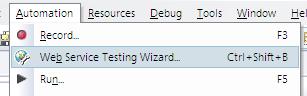
Let us now see Web Service Testing Wizard in QTP. To open the wizard click the web services wizard in toolbar or select Automation > Web Service Testing Wizard.
Let us now see Web Service Testing Wizard in QTP. To open the wizard click the web services wizard in toolbar or select Automation > Web Service Testing Wizard.
You will see a Welcome screen which provides
you the overview of wizard. You can choose whether you want the welcome screen
when running the wizard or not.
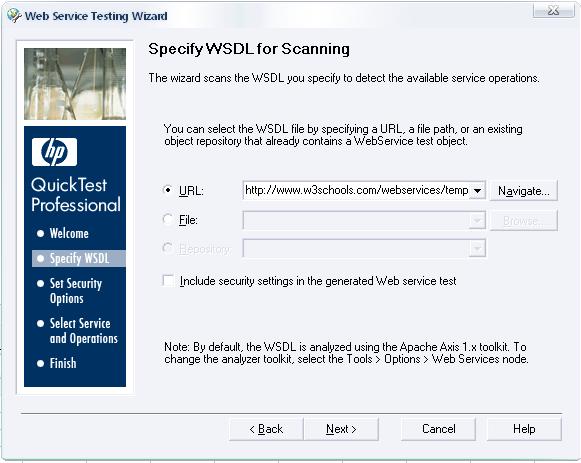
Clicking on Next button you will get the screen for WSDL
Scanning. Here you will need to specify the WSDL, which can be a URL, a WSDL
file or it could be in your repository which has added earlier. Select the Include
security settings in the generated Web service testcheck
box if you want to specify the security tokens that are required for
communication with the Web service you want to test.
Click Next, the next screen that pops up is depending on your
selection in the last screen. If you have specified a secure WSDL, the Network
Credentials dialog box opens. Enter the login details required to access the
WSDL and click OK. The Web Service
Testing Wizard – Set Security Options Screen opens. If you selected the Include
security settings in the generated Web service test check box, the Web Service Testing
Wizard – Set Security Options Screen opens. If you do not need to specify
security settings, the Web Service Testing Wizard – Select Service and
Operations Screen opens.
Specify the WSDL from W3Cschools.com which I have mentioned
in the last parthttp://www.w3schools.com/webservices/tempconvert.asmx?wsdl . Clicking on Next, Select Service and
Operations Screen opens.
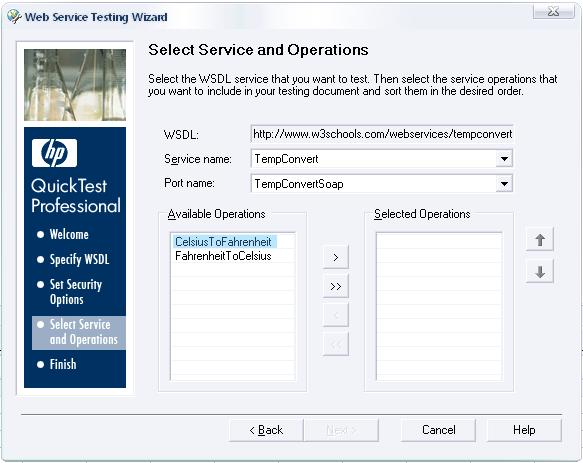
You will see the two operations here select one of the
operations and move it to selected Operations list. And click next. The next
screen comes is the Summary screen. You can automatically insert XML
checkpoints by selecting Add XML checkpoint after each
relevant step (selected
by default). Selecting this check box adds an XML checkpoint for each step in
the test that has a return value or an output argument.
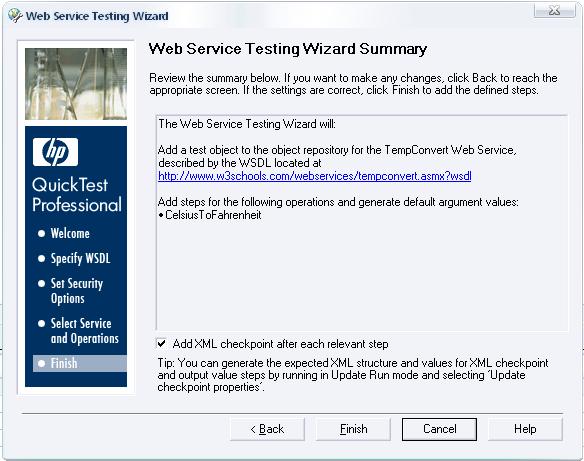
Click Finish and The WebService test object is
stored in the local object repository, and the defined steps are converted to
the proper syntax and inserted into your test.
Go to your Object repository. You will see your
web services test object and the xml checkpoint added. Selecting the test
object, you can see the details of this object like wsdl, port, and service.
You can see the following script generated in your test.
CelsiusToFahrenheit=
  WebService("TempConvertService").CelsiusToFahrenheit("string
  (Autogenerated)")
WebService("TempConvertService").Check
CheckPoint("CelsiusToFahrenheit") |
You can see that the parameters are not yet
passed, it is auto generated by the wizard (“string (Autogenerated)”), and you
will need to specify this parameter before executing this. Something like below
and execute.
CelsiusToFahrenheit =
  WebService("TempConvertService").CelsiusToFahrenheit("25")
WebService("TempConvertService").Check
CheckPoint("CelsiusToFahrenheit") |
In the Test Result you will find that your test
failed. Click on Web Service object you can see the SOAP request and response
there as described in the last part.

The web service has actually output the result
in the response i.e. 77; actually it has failed at check point.
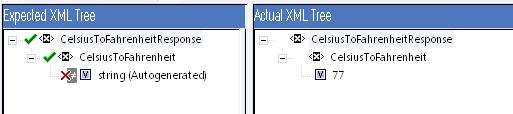
This is because we have not configured the xml
checkpoint for the expected result. So if you have selected to add xml
checkpoint at wizard then make sure you have configured it.
Note:-
- Make sure you run Web service tests using the same toolkit with which the test was created.
- QTP includes Maintenance Run Mode, which is not supported for applications such as Web services, which do not have a user interface.
- WSDL Validation tool is a third-party application that is not provided with QuickTest. You can download Interoperability Testing Tools 1.1 from the Web Services Interoperability Organization Web site at http://www.ws-i.org and it must be installed locally.
Web Services and QTP- Part 3: Adding Web Service Test Object
Apart from Web Services Testing Wizard we discussed in last part,
let’s find out what are other possible ways to work with Web services in QTP.
What about adding Web services objects directly into object repository and use
the test object to add steps in test or component.
QTP provides Web Service Add Object Wizard
which helps you to add the test object into the repository. These web service
test object behaves same as any other test objects while creating the steps in
test i.e. we can access all its operations in keyword view or in expert
view.
To open the Add object Wizard click the object repository at
toolbar or select Resources > Object Repository. Select Object
> Web Service Add Object Wizard. The Web Service Add Object Wizard
opens to show the Specify WSDL for Scanning screen.

Specify the URL for your WSDL as you did at Web
Service Test Wizard and click Next. It will now show you the select
service screen. Here you can select the service and Port from the available
list. And click finish.

Close the Object Repository and the test object
is now ready to use in your test. To use a web service test object use
‘WebService(<Test Object>), and you can access any of the operations
available.

so as of now, we have seen that we add a test
object in the repository and can do further processing. Let’s now see how
can test a web service without adding the test object in the repository.
A web service test object requires three main
description properties to invoke a method. Which are –
- WSDL
- Service and
- Port
Refer object repository for already added test
object

if we can define these in the script we will be
able to access the methods of web services.
WebService(“wsdl:=<your
wsdl>”,”service:=<your service>”,”port:=<your port>”)
So in order to invoke the method
CelsiusToFahrenheit from the WSDL used in earlier parts you can have the
statement in the script as –
Desc1 = "wsdl:=http://www.w3schools.com/webservices/tempconvert.asmx?wsdl"Desc2 =
"service:=TempConvert"Desc3 =
"port:=TempConvertSoap"' Call to the
WebServiceFahrenheitval =
WebService(Desc1, Desc2, Desc3).CelsiusToFahrenheit("25")msgbox Fahrenheitval |
Which gives you the required output as 77.
All the other available operations can be
carried out with this approach.
Web Services and QTP- Part4: Testing without Web Services Add-in
Yes, you got it right testing
Web services can be
done without using Web services add-in. All this is possible with the help of WinHTTP(Microsoft
Windows HTTP service), which provides a high-level interface to the HTTP internet
protocol.
We can use the com object WinHTTPRequest in our tests in order to invoke any
operation to a web service. We will need to post the SOAP request to the web
server using methods and properties ofWinHTTPRequest and we can get the corresponding
response from the service.
Let us now try this out, open QTP and make sure you have not
enabled Web Services Add-in in Add-in manager at startup.To retrieve the COM
object of WinHTTP we use CreateObject method
Dim oWinHttpSet oWinHttp = CreateObject("WinHttp.WinHttpRequest.5.1") |
Now you can access the different properties and
methods of WinHTTPRequest. I have explained some of them which we will need to
use here.
Object.Open Method,URL,Async
Open – opens a connection to an HTTP resource.
Method – specifies the HTTP verb used for the open method, like ‘GET’,’PUT’,’POST’ etc
URL – the name of the resource
Async – indicates whether to open in asynchronous mode.
Open – opens a connection to an HTTP resource.
Method – specifies the HTTP verb used for the open method, like ‘GET’,’PUT’,’POST’ etc
URL – the name of the resource
Async – indicates whether to open in asynchronous mode.
Object.SetRequestHeader Header,Value
SetRequestHeader – adds, changes, or deletes an HTTP request header
Header Specifies the name of the header to be set like depth,Content type, Content length etc.
Value specified the value of header.
SetRequestHeader – adds, changes, or deletes an HTTP request header
Header Specifies the name of the header to be set like depth,Content type, Content length etc.
Value specified the value of header.
Object.Send Body
Send – sends an HTTP request to an HTTP server.
Body – is the data to be sent to the server.
Send – sends an HTTP request to an HTTP server.
Body – is the data to be sent to the server.
We will use one property ‘ResponseText’ here which retrieves the responses
entity body as text. Now as we are now aware of these methods, we can use this
in our script. Below example script illustrate the accessing of web services
using WinHTTP.
Option ExplicitDim sWebServiceURL, sContentType, sSOAPAction,
sSOAPRequestDim oWinHttpDim sResponse'Web Service URLsWebServiceURL
="http://www.w3schools.com/webservices/tempconvert.asmx"'Web Service Content
TypesContentType
="text/XML"'Web Service SOAP
ActionsSOAPAction = "http://tempuri.org/CelsiusToFahrenheit"'Request BodysSOAPRequest =
"<?xml version=""1.0""
encoding=""utf-8""?>" & _"<soap:Envelope
xmlns:xsi="http://www.w3.org/2001/XMLSchema-instance"
xmlns:xsd="http://www.w3.org/2001/XMLSchema"
xmlns:soap="http://schemas.xmlsoap.org/soap/envelope/">"
& _"<soap:Body>"
& _"<CelsiusToFahrenheit
xmlns="http://tempuri.org/">"
& _"<Celsius>25</Celsius>"
& _"</CelsiusToFahrenheit>"
& _"</soap:Body>"
& _"</soap:Envelope>"Set oWinHttp =
CreateObject("WinHttp.WinHttpRequest.5.1")'Open HTTP connectionoWinHttp.Open
"POST", sWebServiceURL, False'Setting request
headersoWinHttp.setRequestHeader
"Content-Type", sContentTypeoWinHttp.setRequestHeader
"SOAPAction", sSOAPAction'Send SOAP requestoWinHttp.Send
sSOAPRequest'Get XML ResponsesResponse =
oWinHttp.ResponseText' Close objectSet oWinHttp = Nothing' Extract resultDim nPos1, nPos2nPos1 =
InStr(sResponse, "Result>") + 7nPos2 = InStr(sResponse,
"</")If nPos1 > 7 And nPos2 > 0 Then sResponse = Mid(sResponse, nPos1, nPos2 - nPos1)End If' Return resultmsgbox sResponse |
This gives you the required expected value

The same we can do using XMLHTTP also, see the
example below which illustrate the accessing of web services using XMLHTTP
Option ExplicitDim sWebServiceURL, sContentType, sSOAPAction,
sSOAPRequestDim oDom, oXmlHttpDim sResponsesWebServiceURL
="http://www.w3schools.com/webservices/tempconvert.asmx"
'Web Service URLsContentType
="text/XML" 'Web
Service Content TypesSOAPAction = "http://tempuri.org/CelsiusToFahrenheit"
' Web Service SOAP Action'Request BodysSOAPRequest =
"<?xml version="1.0" encoding="utf-8"?>"
& _"<soap:Envelope
xmlns:xsi="http://www.w3.org/2001/XMLSchema-instance"
xmlns:xsd="http://www.w3.org/2001/XMLSchema"
xmlns:soap="http://schemas.xmlsoap.org/soap/envelope/">"
& _"<soap:Body>"
& _"<CelsiusToFahrenheit
xmlns="http://tempuri.org/">"
& _"<Celsius>25</Celsius>"
& _"</CelsiusToFahrenheit>"
& _"</soap:Body>"
& _"</soap:Envelope>"'Create objects to
DOMDocument and XMLHTTPSet oDom = CreateObject("MSXML2.DOMDocument")Set oXmlHttp = CreateObject("MSXML2.XMLHTTP")'Load XMLoDom.async = FalseoDom.loadXML
sSOAPRequest'Open the webservice oXmlHttp.open "POST", sWebServiceURL,
False'Create headingsoXmlHttp.setRequestHeader
"Content-Type", sContentTypeoXmlHttp.setRequestHeader
"SOAPAction", sSOAPAction'Send XML commandoXmlHttp.send
oDom.xml'Get XML ResponsesResponse =
oXmlHttp.ResponseText'Close objectSet oXmlHttp = Nothing'Extract resultDim nPos1, nPos2nPos1 = InStr(sResponse,
"Result>") + 7nPos2 =
InStr(sResponse, "</")If nPos1 > 7 And nPos2 > 0 Then sResponse = Mid(sResponse, nPos1, nPos2 - nPos1)End If'Return resultmsgbox sResponse |
|
Option ExplicitDim sWebServiceURL, sContentType, sSOAPAction,
sSOAPRequestDim oWinHttpDim sResponsesWebServiceURL
="http://www.w3schools.com/webservices/tempconvert.asmx"
'Web Service URLsContentType
="text/XML" 'Web
Service Content TypesSOAPAction = "http://tempuri.org/CelsiusToFahrenheit"
' Web Service SOAP Action'Request BodysSOAPRequest =
"<?xml version=""1.0""
encoding=""utf-8""?>" & _"<soap:Envelope
xmlns:xsi=""http://www.w3.org/2001/XMLSchema-instance""
xmlns:xsd=""http://www.w3.org/2001/XMLSchema""
xmlns:soap=""http://schemas.xmlsoap.org/soap/envelope/"">"
& _"<soap:Body>"
& _"<CelsiusToFahrenheit
xmlns=""http://tempuri.org/"">"
& _"<Celsius>25</Celsius>"
& _"</CelsiusToFahrenheit>"
& _"</soap:Body>"
& _"</soap:Envelope>"Set oWinHttp = CreateObject("WinHttp.WinHttpRequest.5.1")'Open HTTP connectionoWinHttp.Open
"POST", sWebServiceURL, False'Setting request
headersoWinHttp.setRequestHeader
"Content-Type", sContentTypeoWinHttp.setRequestHeader
"SOAPAction", sSOAPAction'Send SOAP requestoWinHttp.Send
sSOAPRequest'Get XML ResponsesResponse =
oWinHttp.ResponseText' Close objectSet oWinHttp = Nothing' Extract resultDim nPos1, nPos2nPos1 =
InStr(sResponse, "Result>") + 7nPos2 =
InStr(sResponse, "</")If nPos1 > 7 And nPos2 > 0 ThensResponse =
Mid(sResponse, nPos1, nPos2 - nPos1)End If' Return resultmsgbox sResponse |
|
 Have you downloaded the FREE Optimizing QTP eBook yet?
No comments:
Post a Comment